Overview
WebSell Sync (NSc Sync) is a core component of the WebSell eCommerce solution. It synchronizes data between your in-store database and your WebStore.
WebSell Sync supports two synchronization modes:
- Manual Synchronization – synchronization is started on demand.
- Automatic Synchronization – synchronization runs automatically at scheduled intervals.
When automatic synchronization is enabled, data is synchronized automatically without user intervention.
Important
WebSell Sync must remain running for automatic synchronization to function correctly.
Application Layout
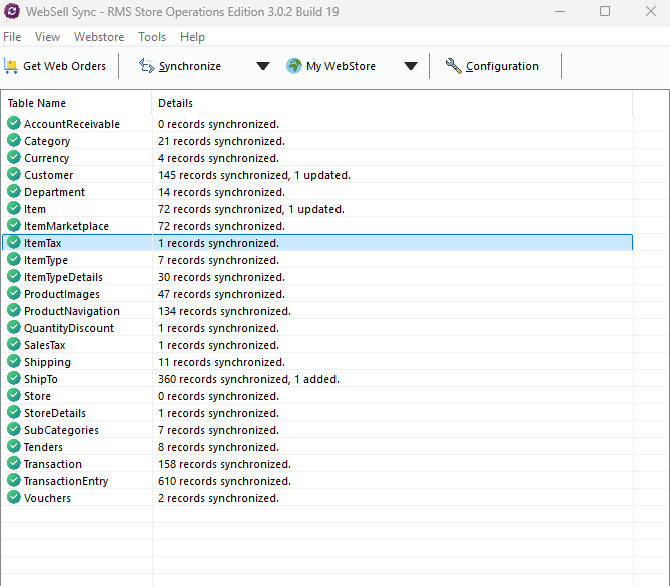
The WebSell Sync interface consists of three main areas:
Menu Bar
Provides access to configuration, synchronization, and application management options.
Toolbar
Provides quick access to commonly used synchronization and WebStore functions.
Summary Window
Displays information about the most recent synchronization, including synchronization status and activity.
Menu Bar
The menu bar provides access to WebSell Sync configuration, synchronization, WebStore management, and help options.
File
The File menu contains configuration and application management options.
Configuration
Path: File → Configuration
Use this option to:
- View the current system configuration.
- Modify WebSell Sync and WebStore synchronization settings.
WebStore Profiles
Path: File → WebStore Profiles → Profile Management
WebStore Profiles allow you to connect and manage multiple WebStores from a single WebSell Sync installation. For example, you can configure separate profiles for a production WebStore and a DemoStore.
Add a Profile
- Go to
File → WebStore Profiles → Profile Management. - Click Add Profile.
- Enter a name for the profile.
- Configure the profile through Configuration.
Delete a Profile
- Go to
File → WebStore Profiles → Profile Management. - Select the profile you want to remove.
- Click Delete.
- Click Yes to confirm.
Warning
Deleting a profile removes its connection to the associated WebSell WebStore. Make sure the profile is no longer required before deleting it.
Rescan Mail Templates
Path: File → Rescan Mail Templates
Use this option to rescan the mail templates and ensure that the latest versions are available.
WebSell Sync’s mail engine automatically sends order status update emails to customers. Email templates are XML-based and can be customized.
Exit
Path: File → Exit
Closes WebSell Sync.
Important
WebSell Sync should normally remain running to allow scheduled synchronization with your WebStore.
To remove the application from view without stopping synchronization, minimize the application instead of closing it.
WebStore
The WebStore menu provides options for synchronizing and testing the connection to your WebStore.
Synchronize WebStore
Use this option to manually start synchronization with your WebStore.
Timed Synchronization
Use this option to enable and configure automatic synchronization.
When enabled, WebSell Sync synchronizes your WebStore profiles at regular, predefined intervals.
Test WebStore Connection
Use this option to test the connection between WebSell Sync and your WebStore.
If the connection test is unsuccessful, open Configuration and verify the WebStore connection and configuration settings.
Tools
The Tools menu provides access to additional WebSell applications.
For example, if you select PAM – RMH Edition, WebSell Product Attribute Manager (PAM) launches.
Help
The Help menu provides access to online documentation and information about the installed version of WebSell Sync.
Help Topics
Path: Help → Help Topics
Opens the online WebSell Sync help documentation.
About
Path: Help → About
Displays information about the installed WebSell Sync version.
Toolbar
The WebSell Sync toolbar provides quick access to commonly used functions.
Get Web Orders button

Downloads the latest Web Orders from your WebStore.
Synchronize button

Immediately starts synchronization between your in-store database and your WebStore.
Use the drop-down arrow next to Synchronize to select individual data tables to synchronize.
My WebStore

Opens your WebStore in the default web browser.
Use this option to view the results of configuration or synchronization changes applied to your WebStore.
To access WebStore Manager:
- Click the arrow next to My WebStore.
- Select Visit WebStore Manager.
- Sign in using your NitroWebSell Partner Portal username and password.
Configuration

Opens the WebSell Sync Configuration dialog, where you can configure WebSell Sync and WebStore settings.
Summary Window
The Summary Window displays a summary of the most recent synchronization with your WebStore showing Table names and number of items synchronized (for example a number of customers or departments added to the webstore).
The information displayed in this window is for reference purposes only.
Best Practices
- Keep WebSell Sync running if you use automatic synchronization.
- Minimize WebSell Sync instead of closing it when you do not need the application window.
- Regularly verify that scheduled synchronizations complete successfully.
- Review and maintain your WebStore Profiles as needed.