Overview
The Spreadsheet Importation Tool allows you to update product data in bulk by importing information from a spreadsheet. You can find the tool in PAM > Tools > Spreadsheet Importation.
Important: Incorrect column mapping or spreadsheet data may result in unintended changes to your product database. Always test the process on a small number of products before importing larger datasets.
1. Prepare Your Spreadsheet
Before importing your data, make sure your spreadsheet meets the following requirements:
- Save the spreadsheet in XLS format.
- Organize the data into columns, with each column containing a specific product attribute.
- Include a product identifier that PAM can use to match each row to the correct product in the database. This is typically the Item Lookup Code, but depending on your POS system, you may need to use a different identifier, such as the Part Number.
- Add column headers in the first row. This allows PAM to recognize the column names during import.
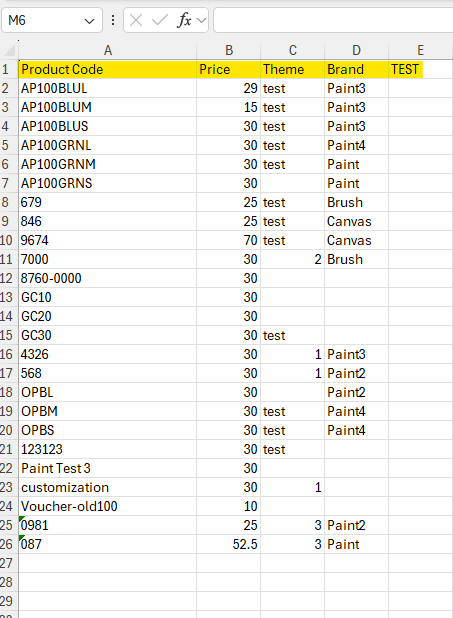
Known limitation: Last column recognition
The Spreadsheet Importation Tool currently has a known issue where it may not recognize the last column in the spreadsheet.
To work around this issue, add an extra empty column at the end of your spreadsheet and give it a header. In the attached example, the column is named TEST. This allows the preceding columns to be recognized correctly.
Known limitation: Last column recognition
The Spreadsheet Importation Tool has a known issue that may prevent it from recognizing the last column in the spreadsheet.
To work around this issue, add an extra column at the end of your spreadsheet and give it a header. Leave the column empty. In the example above, the column is named TEST.
This ensures that the preceding columns are recognized correctly.
2. Select Your Spreadsheet
- Open PAM > Tools > Spreadsheet Importation.
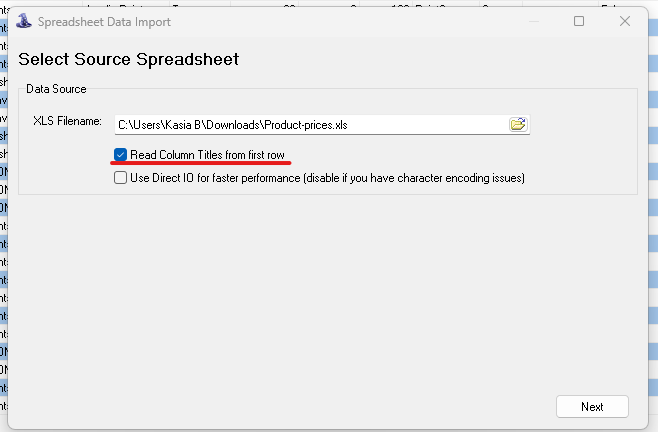
- Select your spreadsheet file. Make sure your spreadsheet editor is closed before selecting the file.
- Select the checkbox that allows PAM to use the first row as column names.
3. Map Spreadsheet Columns to Product Attributes
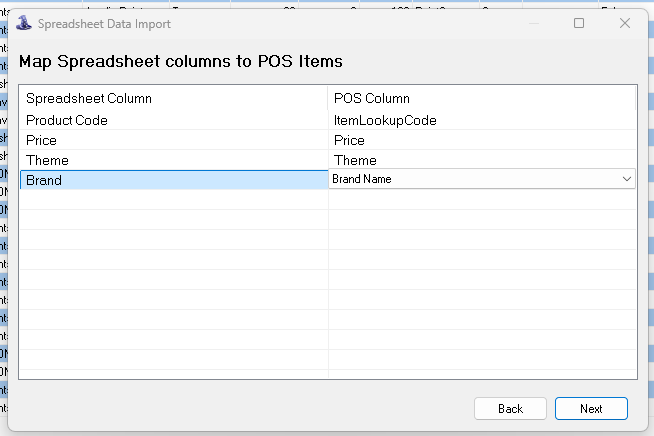
Assign each spreadsheet column to the corresponding product attribute in PAM.
If your identifier column is named ItemLookupCode, PAM may recognize and map it automatically. If you use a different identifier, such as Part Number in Windward System Five, you may need to map it manually.
Map the remaining columns to the appropriate attributes. For example, you might select Price, Theme, and Brand Name.
Important: Carefully verify every column mapping before proceeding. Incorrect mappings can overwrite product data with unintended values.
4. Review the Import Preview
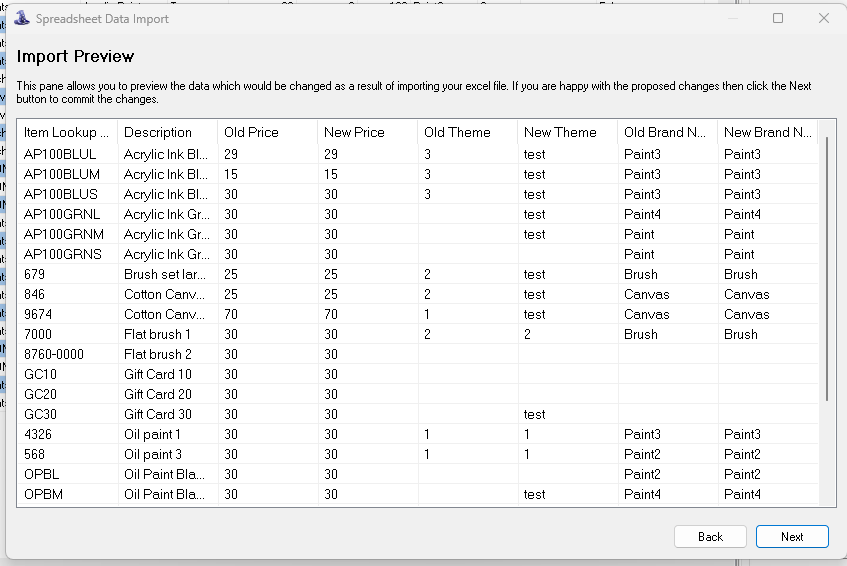
PAM displays a preview of the changes before applying them.
Review the preview carefully to ensure that the correct products and attributes have been selected and that the proposed changes are accurate. If necessary, return to the previous step to correct the column mappings.
5. Complete the Import
- Accept the preview to apply the changes.
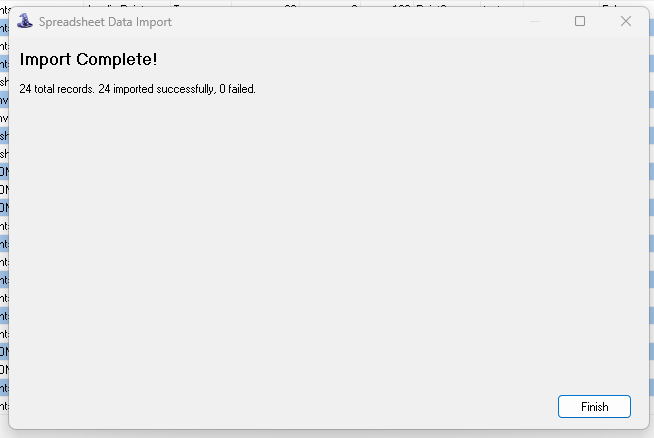
- Review the results screen to confirm that the import process has completed.
6. Verify the Updated Data
After the import is complete, refresh or restart PAM to see the updated product data.
Check the affected products to confirm that the intended attributes have been updated correctly.
Recommended Best Practices
Before importing a large dataset:
- Back up your data. Keep a copy of the original product information before making bulk changes.
- Test with one or two products. Complete a small test import and verify the results before proceeding with a larger dataset.
- Double-check column mappings. Make sure each spreadsheet column corresponds to the correct PAM attribute.
- Review the preview carefully. Confirm that the proposed changes are correct before accepting the import.