This article explains how to configure taxes in the POS and WebStore, and how to calculate taxes based on the customer’s shipping state when required.
Initial Tax Setup
-
Set up Customer Tax, Sales Tax, and Item Tax options in the POS, including item-level tax settings.
-
Confirm that your store configuration is set to assign tax schedules per item.
-
Sync these changes to your web store. Then go to Web Store Manager> Fulfillment & Taxes > General Setup.
- Select a country.
- Click Configure States.
- Choose a state and configure its tax settings.
4. Test your tax configuration to ensure it is calculating correctly.
Tax Based on Shipping state (for US-based stores)
Some stores are required to calculate tax based on the customer’s shipping state instead of the billing address.
-
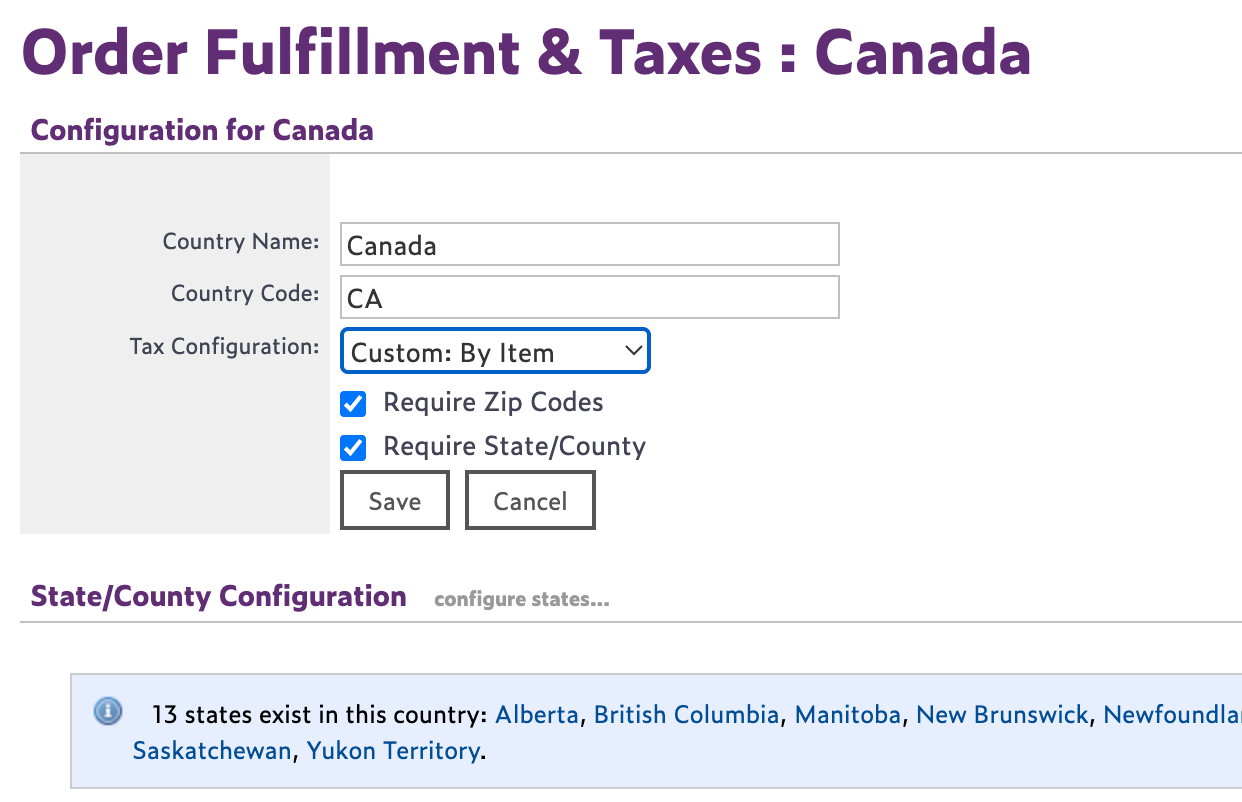
In Web Store Manager> Fulfillment & Taxes, review the tax configuration and set it to Custom: By Item if needed.
-
Configure the local item tax and map it to the appropriate sales tax.
Example: PA Item Tax should be mapped to PA Sales Tax. -
Click Configure State and verify that:
-
Nexus states are not marked as exempt.
-
Custom: By Item is selected.
4. In Websell Sync, hardcode the following values and run a sync.
-
config_taxbasis = 1 -
config_taxfield = 5 -
config_taxsystem = 1
Taxes will now be calculated based on the customer’s shipping state rather than the billing address.