
How to manage your store emails
Using this feature you can:
- Send automatic emails to your customers based on their orders, forms, or general needs.
To manage your store emails, do the following:
- Login to your WebStore Manager.
- Go to Marketing > Manage Store Emails.
Order related emails
Sends an automated email to your customers about their orders.
Each email has a panel that:
- Lists the fields that can be modified;
- Displays options that effect this email;
- Master switch that can be used to disable this email;
- Reset button;
- Link to the template editor for the email;
If you wish to enter a list of emails please separate them with commas.
Note: Changes made to the panel take effect immediately, there is no save button.
Abandoned cart
- An email can be sent to a customer if they have left items in their cart for a certain number of days.
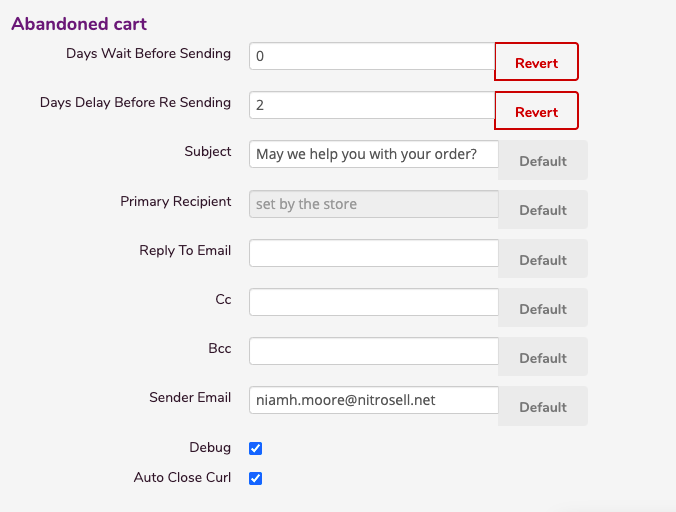
Note: If you wish to enter a list of emails please separate them with commas.
-
Click Email Enabled to disable this email.
-
The Reset button resets the email back to its default state.
-
The Template button redirects you to the email template.

Note: If you don’t see the Template button then you don’t have the edit template privilege. Contact support for more information.
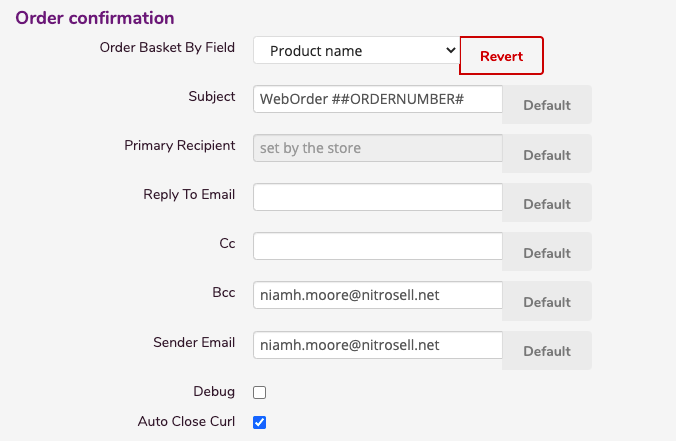
Order confirmation
- An automatic email can be sent to customers to confirm that their order has been received.
- Strings can be used in the subject line including the following tags:
-
#ORDERNUMBER#
-
#STORENAME#
-
-
The Order Basket can be set to your preferred field.
-
The option to enable, disable, or reset will also be available.
Review request
- Sends an email to customers who have made a purchase to review the product.
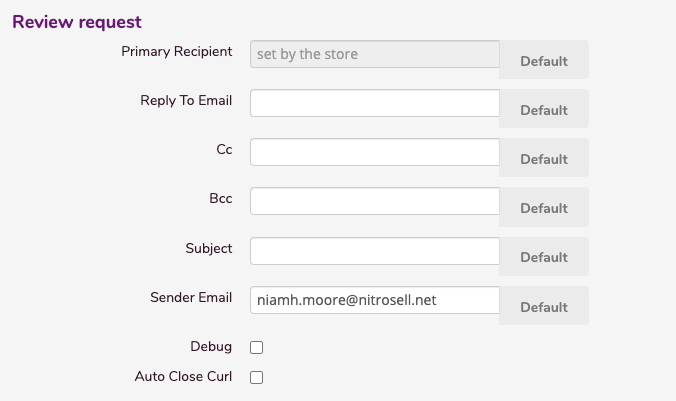
To learn more about review requests visit: Setting up and viewing customer reviews.
Misc related emails
- An automated email is sent to the customer if they have filled out a custom form
- This section is divided into two parts: Form Builder and Custom Form
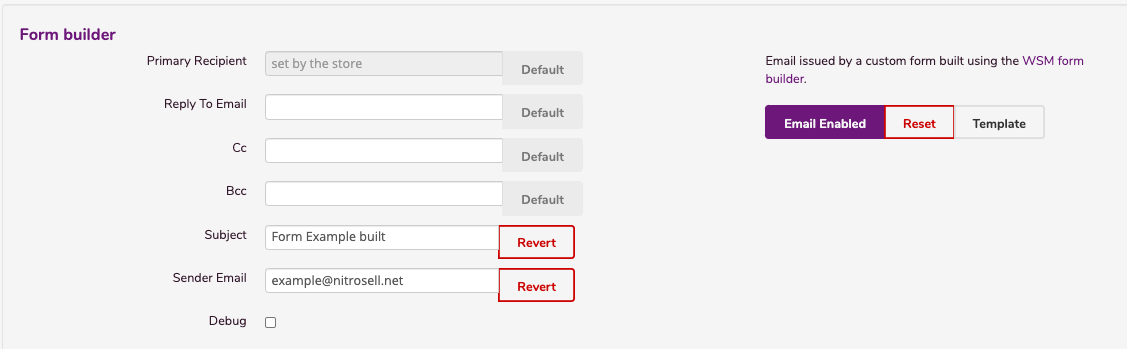
Form builder
- When a form has been created an email will be issued to your store email
Custom form
- An email is sent when a custom form is used rather than using the WSM form builder
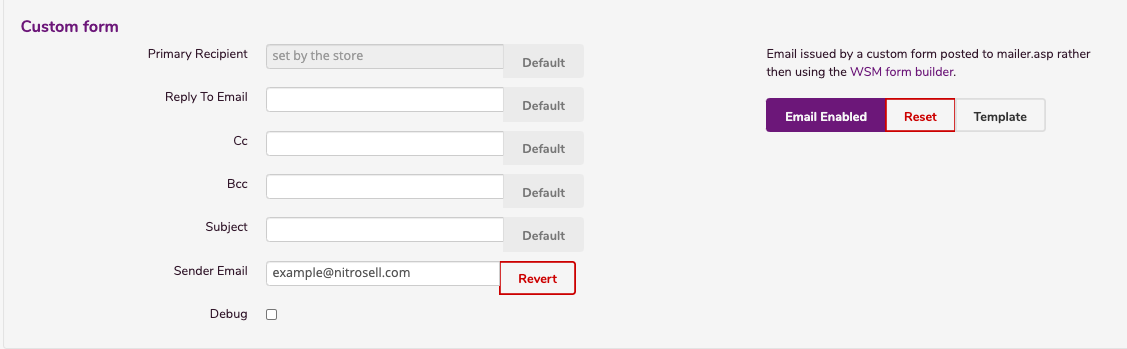
- Custom Form is the exactly like Form Builder it's just used for a different purpose
General emails
- General emails are for all non-specific emails
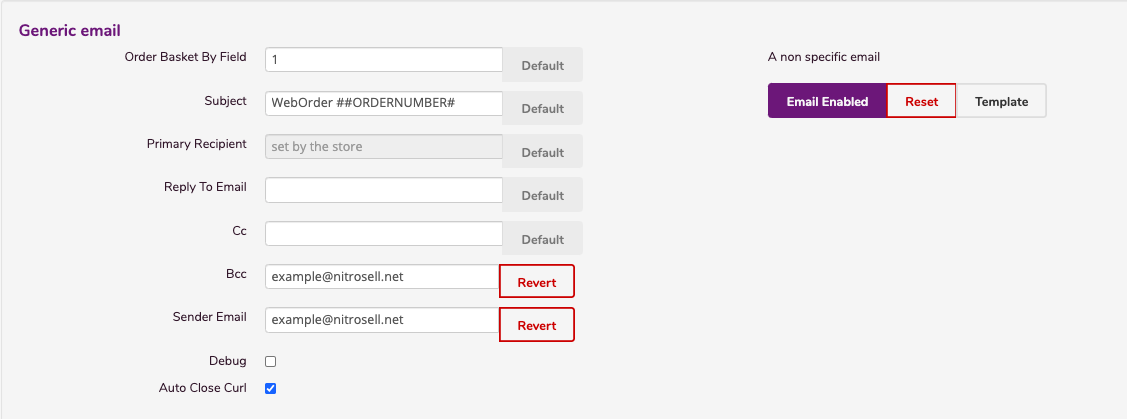
- The Auto Close Curl automatically closes the connection after the response is sent
Note: Changes made to the panel take effect immediately, there is no save button.
Contact us
If you have any problems with this feature please contact our support team by opening a ticket.