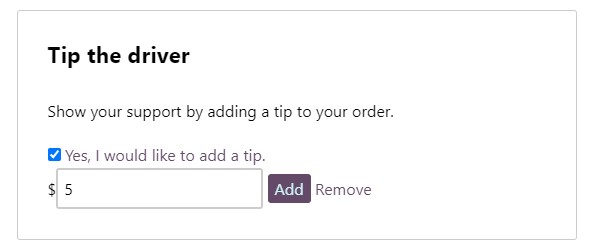
Enabling Tipping Panel
Steps:
- Open your POS, create a new item and name it Driver Tip. Ensure it is made available on the webstore.
-
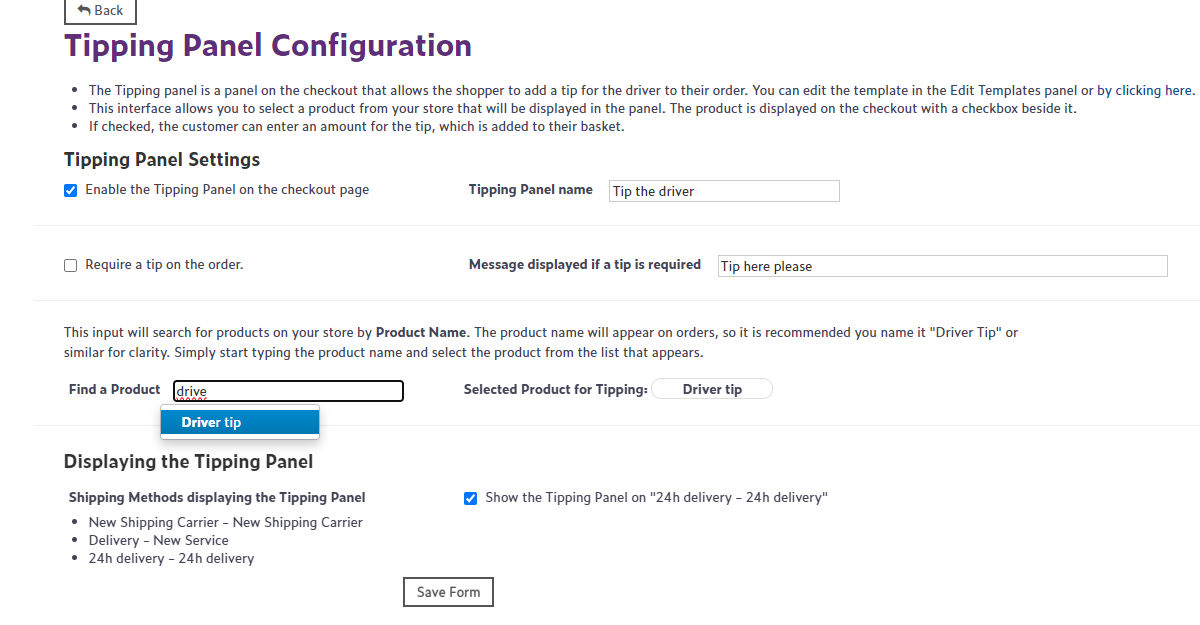
Then open WebStore Manager, go to Fulfillment & Taxes> General Setup> select the country. Now you are brought to an interface that allows you to select a product from your store that will be displayed in the order summary.
-
Go to the section Configure and select the product used for Tipping and choose the item you've just created on your POS for this purpose.
-
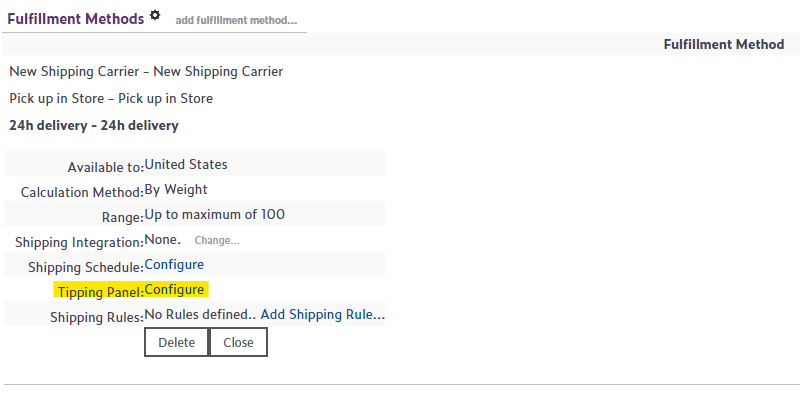
Scroll down to the Fulfillment methods section and navigate to the shipping method for which you'd like to enable the tipping panel, go to Tipping Panel section, click Configure.
-
Make sure you have ticked the box Show the Tipping Panel on the selected delivery method.
-
It is also possible to make tipping obligatory once you tick the Require a tip on the order checkbox.
-
Save the form and the tipping panel should now be available at your checkout, if the customer selects the shipping method with an enabled tipping panel.