
Shopper: My subscriptions
In this feature, you can:
- Edit, pause, or cancel your subscriptions.
To view a shopper's subscriptions, do the following:
- Sign in to My Account.
- Click My Subscriptions.
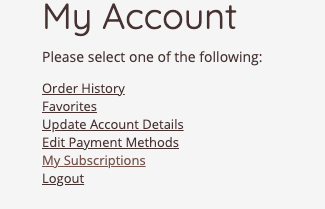
From here, shoppers can view active, paused, or cancelled subscriptions.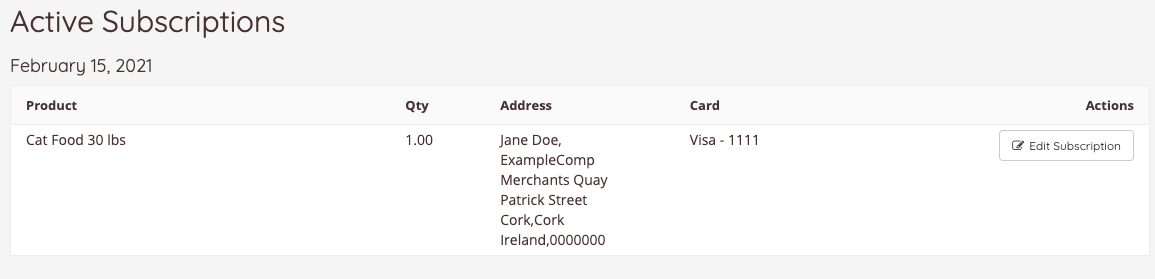
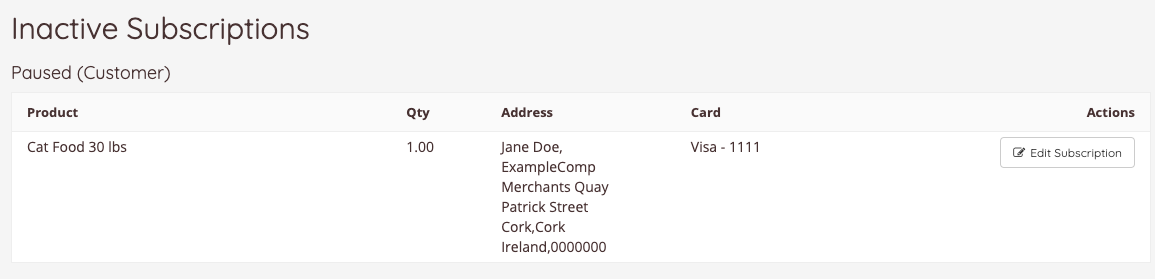
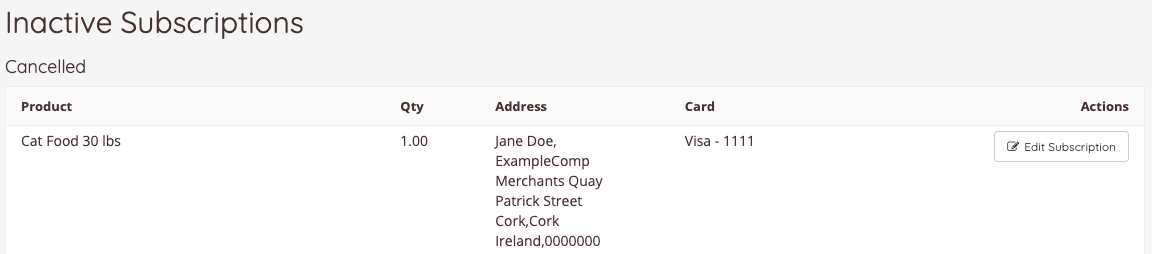
Edit subscription
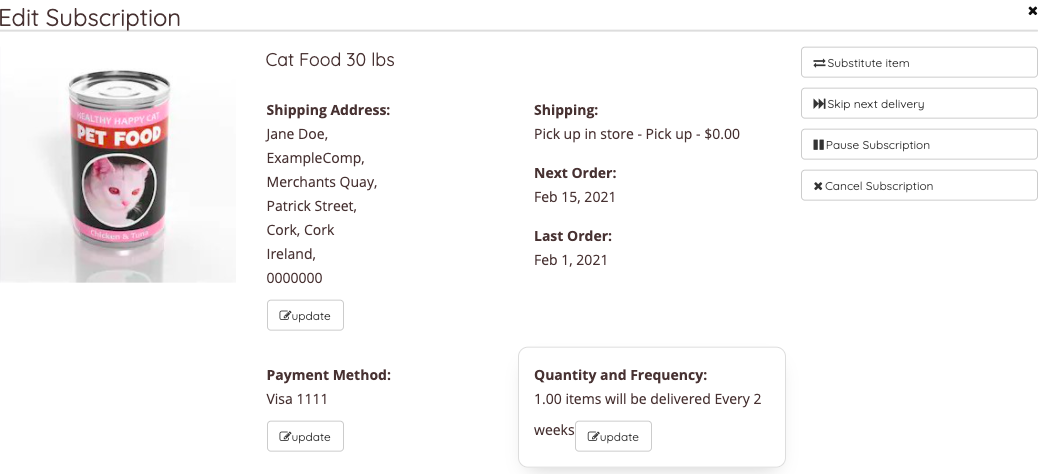
- Click Edit Subscription
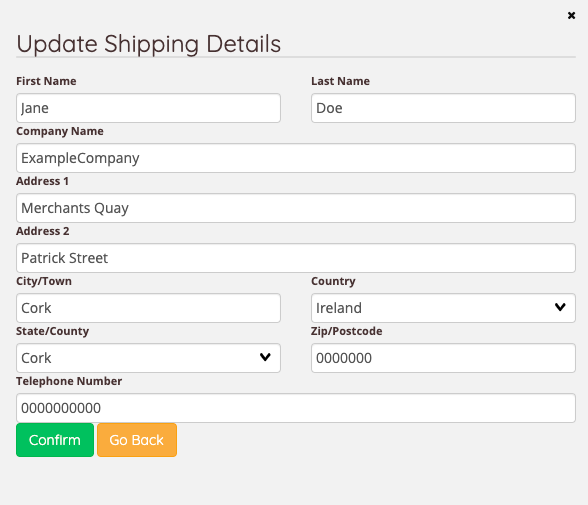
- Updating the shipping address will only affect the individual subscription.
- Update your card details by selecting another saved card or by adding a new card.
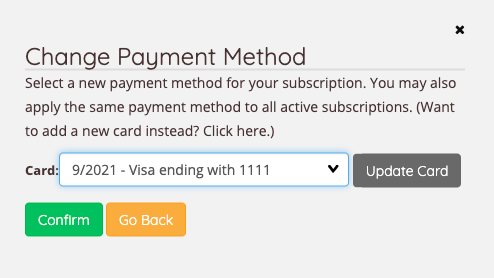
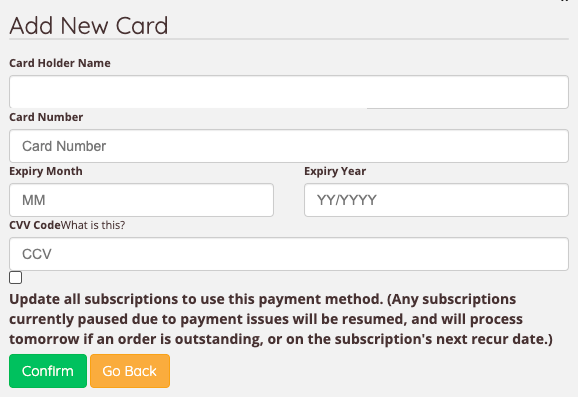
- Click the link provided to add a new card.
- Check the checkbox to add the new payment method to subscriptions.
- Change the quantity and frequency of your subscription.
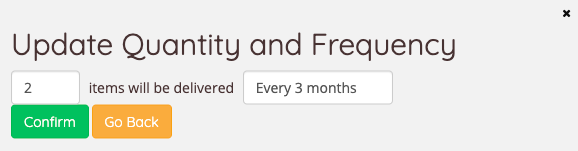
- Substitute current items in your subscription.
Note: Customers will not receive an email confirmation for any changes made.

Note: Substituting items may affect the pricing and applied discounts.
- Skip to next delivery
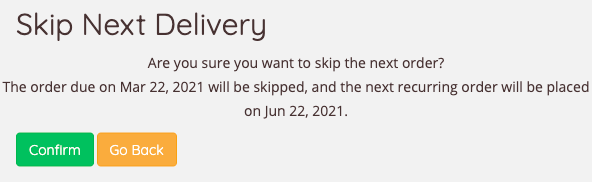
- Pause or cancel your subscriptions.
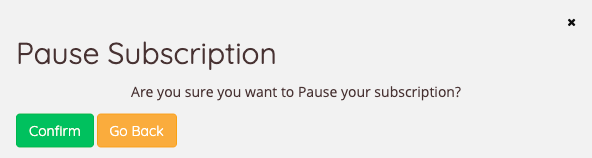
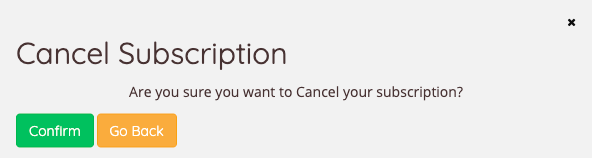
Note: You can't edit a cancelled or paused subscription. Visit subscription settings to resume a subscription. Learn more: Subscription options
Contact us
If you have any problems with this feature, contact our support team by opening a ticket.