This article explains how to configure taxes in the POS and WebStore, and how to calculate taxes based on the customer’s shipping state when required.
Initial Tax Setup
Set up Customer Tax, Sales Tax, and Item Tax options in the POS, including item-level tax settings.
Confirm that your store configuration is set to assign tax schedules per item.
Sync these changes to your web store. Then go to Web Store Manager> Fulfillment & Taxes > General Setup.
- Select a country.
- Click Configure States.
- Choose a state and configure its tax settings.
4. Test your tax configuration to ensure it is calculating correctly.
Tax Based on Shipping state (for US-based stores)
Some stores are required to calculate tax based on the customer’s shipping state instead of the billing address.
In Web Store Manager> Fulfillment & Taxes, review the tax configuration and set it to Custom: By Item if needed.
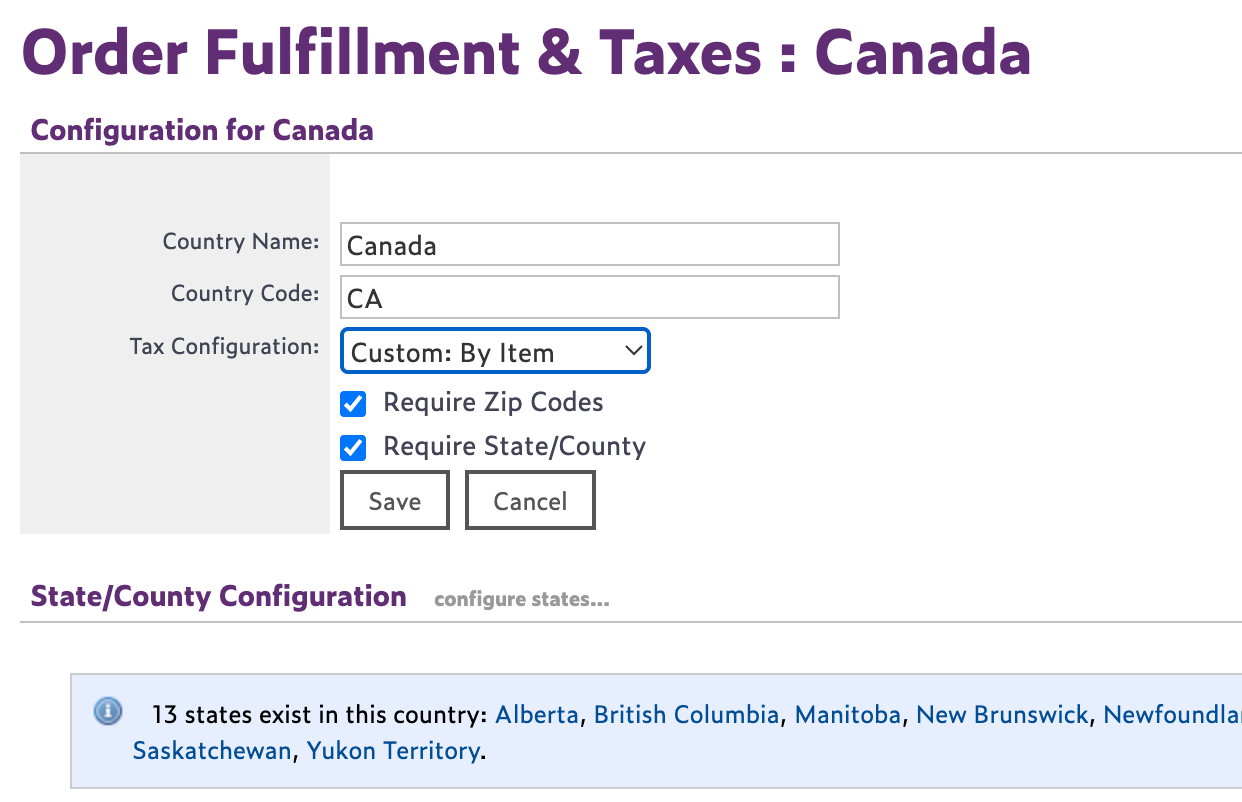
Configure the local item tax and map it to the appropriate sales tax.
Example: PA Item Tax should be mapped to PA Sales Tax.Click Configure State and verify that:
Nexus states are not marked as exempt.
Custom: By Item is selected.
4. In Websell Sync, hardcode the following values and run a sync.
config_taxbasis = 1config_taxfield = 5config_taxsystem = 1
Taxes will now be calculated based on the customer’s shipping state rather than the billing address.