Websell handles payments in line with the standard Business Central sales process. When an order is imported from the web store, Business Central creates a Sales Order, which must then be processed by the seller using the usual workflow.Completing an online payment does not automatically mark the order as paid in Business Central. The seller must apply and finalize the payment in Business Central as part of the normal posting and settlement steps.
Payment Status
When a customer places an order through Websell, Websell determines and tracks the payment status based on the payment method used (for example, credit card, account payments, or manual methods). In Business Central, payment status is not updated at the time of import. The imported order remains open until the seller posts and applies the payment. Business Central records payments through customer ledger entries, and an invoice is considered paid only after the related ledger entries are settled.
Websell order details include the payment method selected by the customer at checkout. This payment method is stored as a code that matches the corresponding Payment Method setup in Business Central.
When the order is imported, Websell applies this payment method code to the created sales order so the seller can continue processing payments using the standard Business Central workflow.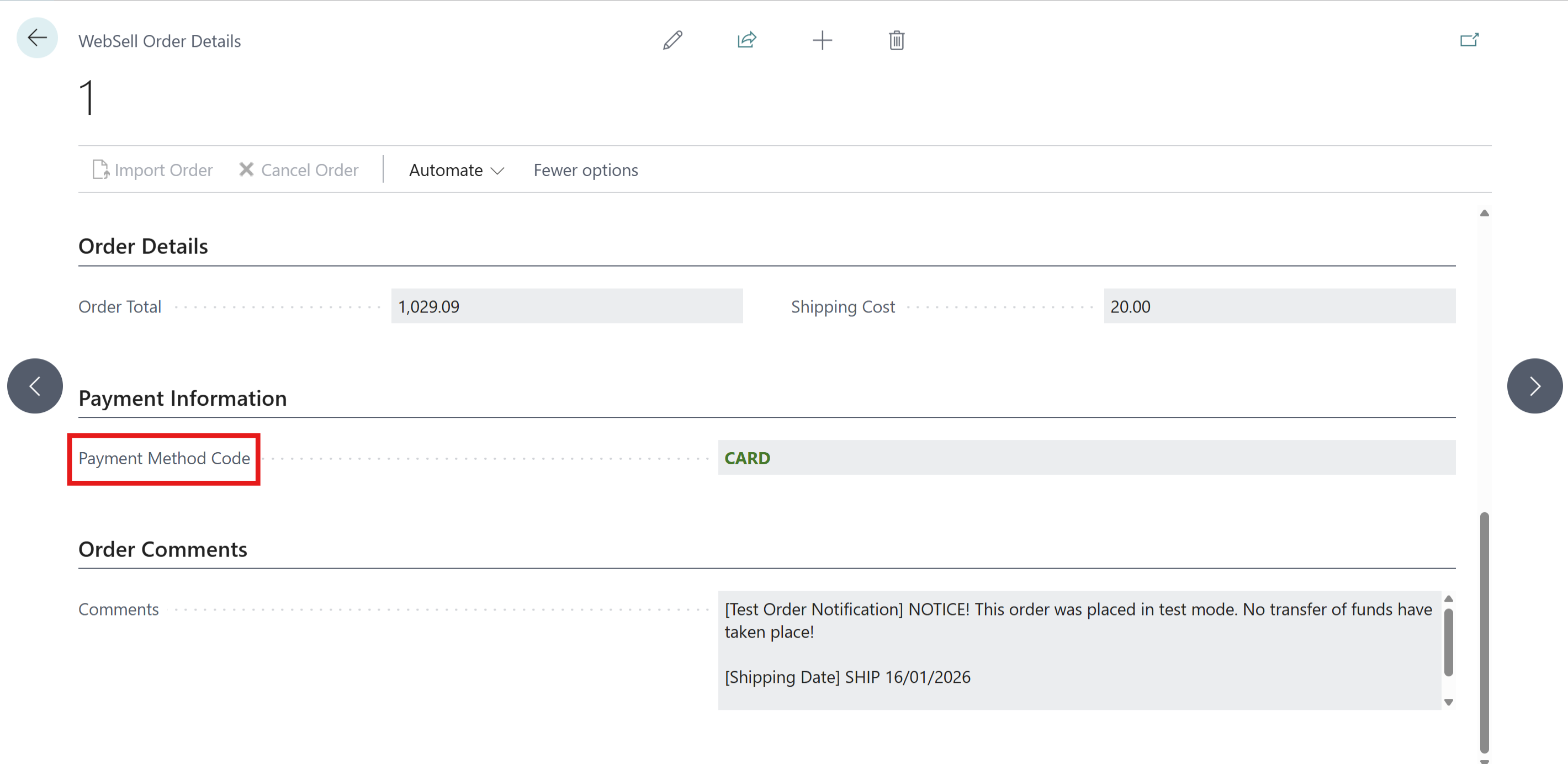
Payment MethodsPayment methods define the way you prefer for customers to pay you, and how you like to pay your vendors. The method can vary for each customer or vendor. Examples of typical payment methods are bank, cash, check, or account.
For more information about setting up and managing payment methods in Business Central, see Payment Methods in the Microsoft documentation:: https://learn.microsoft.com/en-us/dynamics365/business-central/finance-payment-methods  Orders imported from Websell record the Payment Method Code in Business Central. This code must also be correctly configured in Webstore Manager to ensure proper payment handling.
To configure this in Websell Webstore Manage:
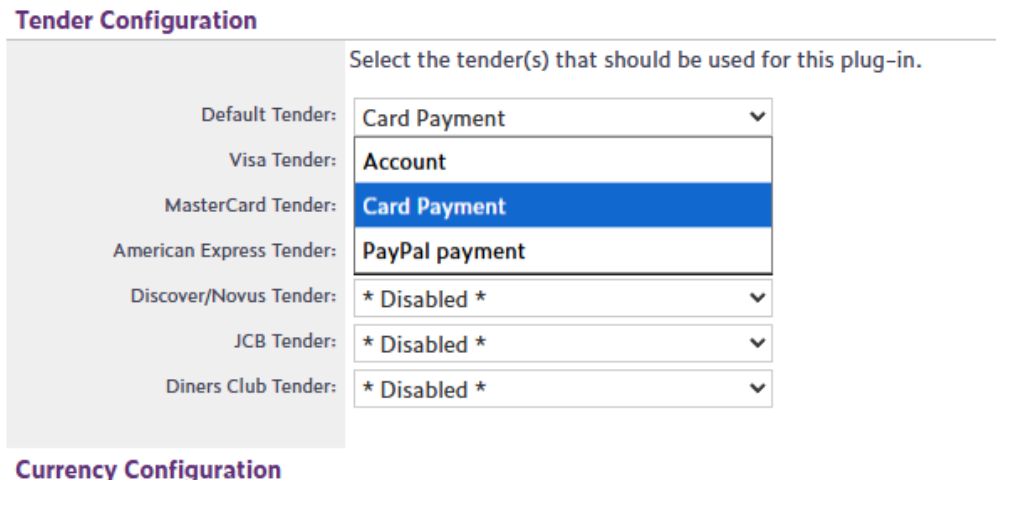
- Navigate to Orders > Payment Processor Setup > Payment Gateway Configuration.
- Select the appropriate payment provider, then click Configure.
- Choose the tender(s) that should be used for this payment plug-in, and click Save Changes at the bottom of the page.